
If you have been looking for a solid browser extension for read aloud, text to speech, or TTS, this post is worth saving. Speakoala is not trying to be just another tool that reads a few lines out loud. We care more about whether it feels smooth, controllable, and natural on the real webpages you use every day.
Some people search for natural voice tools, some compare products with Natural Reader, and some just want something that works without getting in the way. That is what these 8 tips are really about. Once you use Speakoala the right way, it feels less like a demo and more like a browser extension you keep using.
1. The toolbar is flexible, not fixed
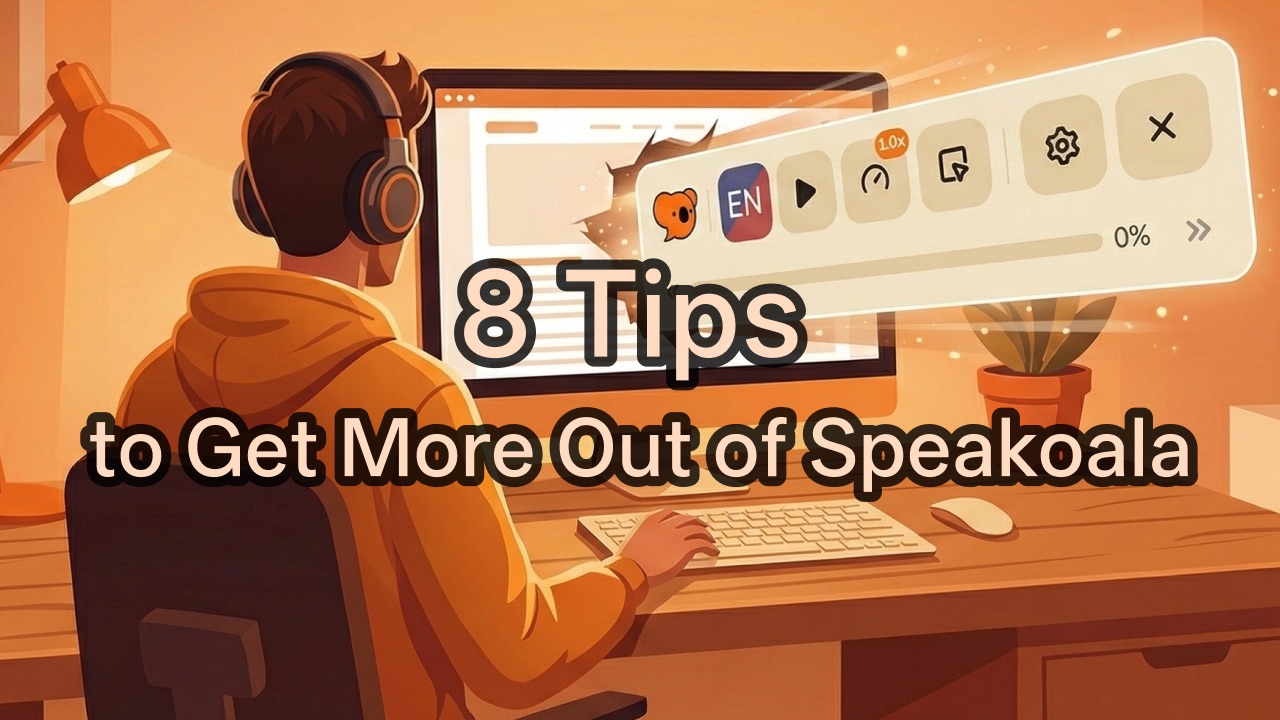
Speakoala lets you switch the toolbar between horizontal and vertical layouts. You can also use dark mode and scale the toolbar up when you want larger controls. For anyone who uses text to speech often, that kind of UI freedom matters more than it sounds, because the tool starts adapting to your reading habits instead of forcing you into one setup.
2. Speed goes from 0.25x to 3x
Some content should be heard slowly, like research papers, language material, or dense emails. Other content just needs a fast scan. Speakoala gives you a full 0.25x to 3x speed range, so you can control the pace instead of fighting it. A good TTS tool is not only about the voice. Rhythm matters too.
3. 70+ languages and 300+ natural voices
If you often search for natural voice, text to speech, or TTS tools, this is one of the features that really matters. Speakoala supports 70+ languages and 300+ voices that sound much more natural than standard read aloud tools. Even free users get daily quota without logging in, so you can test voices first and decide later.
4. Six ambient sounds for longer listening
Clear voice playback is important, but listening to dry speech for a long time can feel tiring. Speakoala adds six ambient sound options that work well for reading, commuting, studying, or quiet work sessions. It is not there just for effect. It helps the listening experience feel softer, more immersive, and easier to stay with.
5. Text highlighting and auto-scroll keep you in sync
Many read aloud tools can play the content, but they are bad at showing where you are. Speakoala highlights the current text while automatically scrolling the page, so your eyes and ears stay aligned. That is especially useful on long articles, because it becomes much easier to jump back in after you lose focus for a moment.
6. You do not have to read the whole page
Sometimes you do not want full-page playback. You only want one paragraph, one note, or one boxed area. Speakoala supports freeform area selection, selected text reading, right-click menu reading, and click-to-read. When a browser extension gives you multiple ways to start playback, it becomes much easier to focus only on the part that actually matters.
7. Shortcuts make playback much easier
People who use TTS regularly almost always end up relying on shortcuts. Speakoala supports play, pause, fast forward, and rewind, so you do not need to move your mouse back to the toolbar every time. That gets especially useful when you are taking notes, doing research, or moving between tabs and still want clean control over playback.
8. Local PDF, DOC, and DOCX support
A lot of tools fall apart as soon as you leave the browser tab, but real workflows do not stop at webpages. Speakoala also supports local PDF, DOC, and DOCX files, so you can keep the same listening flow across reports, handouts, contracts, and notes. For heavy users, that consistency matters just as much as the natural voice itself.
If you are looking for more than a simple read aloud tool, and you want a product that takes text to speech, TTS, browser extension usability, and natural voice quality seriously, Speakoala is worth trying. A lot of people compare it with Natural Reader, but what usually decides the winner is not the spec list. It is whether the tool feels right in daily use. If you want to try it now, download the Chrome extension here.